
 hot topic
How To Play Popular VR Games On Your Mobile Phone: A Complete Beginner’s Guide

Ready to dive into immersive virtual reality gaming without splurging on expensive headsets? In this guide, you'll discover how to turn your everyday mobile phone into a portable VR gaming device. You’ll learn to set up your gear, find popular VR titles, and start playing smoothly in no time.
Why should you care about mobile VR gaming? It opens up a world of immersive experiences that fit in your pocket, letting you play thrilling VR games at home, on the road, or during your lunch break. But it's important to understand the basics first to avoid frustration and get the most out of your setup.
Why Playing Popular VR Games on Your Mobile Phone Is Worth Your Time
- Low Barrier to Entry: You don’t need high-end gaming PCs or costly VR headsets to get started. Most modern smartphones have the processing power to run basic to mid-tier VR games, making this accessible to nearly any player.
- Portability: Unlike tethered VR systems, mobile VR lets you take your gaming sessions anywhere. You can enjoy a quick VR puzzle game on your commute or a longer adventure in your living room without being tied to a desk.
- Wide Range of Titles: App stores host hundreds of VR games, from casual puzzle games to intense action adventures. You can find options that match your gaming style, whether you prefer relaxed gameplay or fast-paced challenges.
- Affordable Content: Many mobile VR games are free or available at a low cost, so you can try different titles without overspending. Some even offer in-game updates or expansions to keep your experience fresh.
- Skill Development: Mobile VR games can help improve your hand-eye coordination and spatial awareness. The immersive nature of VR encourages you to think and react in 3D space, which may translate to better performance in other gaming genres.
Step-by-Step Guide to Playing Popular VR Games on Your Mobile Phone
Step 1: Check Your Phone’s VR Compatibility
First, confirm that your smartphone supports VR functionality. Most phones released in the last 4 years have the necessary sensors and processing power, but you can double-check by searching your phone model online for VR support. You’ll need a screen size of at least 4.7 inches and a high-resolution display for a clear experience.
Pro tip: If your phone has a gyroscope and accelerometer, it’s likely compatible with basic VR apps.
Step 2: Get a Budget-Friendly VR Headset Accessory
You don’t need a premium headset—affordable, phone-compatible VR goggles work well for most mobile games. Look for models that fit your phone’s screen size and have adjustable straps for comfort. Many options include foam padding to reduce pressure on your face during long sessions.
Common mistake to avoid: Skipping a headset and trying to play VR games with just your phone. The split-screen VR format won’t feel immersive without a proper viewing device.
Step 3: Download Popular VR Games from Your App Store
Open your phone’s app store and search for "VR games" to browse top-rated titles. Look for games with high user reviews and clear descriptions of VR compatibility. Start with free or low-cost options to test the experience before committing to pricier games.
Pro tip: Try casual titles like VR puzzle games or virtual escape rooms first to get used to the immersive controls.
Step 4: Set Up Your VR Headset and Phone
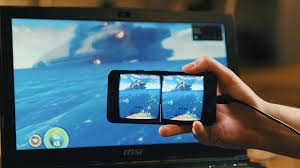
Insert your phone into the VR headset’s designated slot, making sure the screen is centered and aligned with the lenses. Adjust the straps so the headset fits snugly but comfortably on your head. Some headsets have focus dials, so tweak those until the screen looks clear and sharp.
Common mistake to avoid: Forgetting to lock your phone’s screen rotation before inserting it into the headset, which can mess up the VR viewing angle.
Step 5: Calibrate Your Phone’s Sensors for VR Play
Most mobile VR games will prompt you to calibrate your phone’s sensors when you first open them. Follow the on-screen instructions, which usually involve moving your phone in specific patterns to sync the motion controls. Proper calibration ensures that your in-game movements match your real-world actions accurately.
Pro tip: Re-calibrate if you notice lag or misalignment between your movements and the game’s response.
Step 6: Start Playing and Adjust Your Settings
Put on the headset and follow the game’s tutorial to learn basic controls, which may include head movements, touchscreen taps, or Bluetooth controller inputs. Adjust the game’s volume, brightness, and control sensitivity to match your preferences. Take short breaks every 15-20 minutes to reduce eye strain.
Common mistake to avoid: Playing for too long without breaks, which can cause dizziness or eye fatigue in some users.
Challenges to Be Aware Of
- Limited Graphics and Performance: Mobile phones can’t match the graphics quality of high-end VR systems. You may notice lower resolution or frame drops in more demanding VR games, which can affect your immersive experience. To mitigate this, stick to games designed specifically for mobile hardware.
- Comfort and Fatigue: Some users may experience mild dizziness or eye strain during long VR sessions, especially if they’re new to immersive gaming. Starting with short play sessions and taking frequent breaks can help your body adjust over time.
- Controller Limitations: Many mobile VR games rely on touchscreen controls or head movements, which may feel less precise than dedicated VR controllers. While some headsets support Bluetooth controllers, adding this accessory can increase your overall setup cost.
- Smaller Game Library for Advanced Players: If you’re a seasoned VR gamer, you may find that mobile VR lacks the complex, story-driven titles available on high-end systems. However, the library is growing, with more mid-tier adventures being added regularly.
Conclusion
You now have the foundation to start playing popular VR games on your mobile phone. You’ve learned to check compatibility, set up your gear, and find titles that match your gaming style. With a little practice, you’ll be enjoying immersive VR experiences wherever you go.
Mobile VR gaming offers an accessible, affordable way to explore virtual worlds without investing in expensive equipment. By mastering this setup, you’re positioning yourself to enjoy a unique gaming experience that fits your busy lifestyle. You may even discover a new favorite genre you hadn’t tried before.
Don’t wait for the perfect moment. Start by checking your phone’s VR compatibility today. Every small step brings you closer to immersive, on-the-go gaming that you can enjoy whenever you have free time.
FAQ
How long does it take to set up mobile VR gaming for the first time?
Most users can complete the setup process in 10 to 15 minutes, assuming they have their headset ready. The longest parts are downloading games and calibrating sensors, which may take a few extra minutes depending on your internet speed. Take your time to adjust the headset for comfort, as this will make your gaming sessions more enjoyable. Start with a quick test game to make sure everything works properly before diving into a longer session.
Do I need a high-end flagship phone to play mobile VR games?
You don’t need a top-of-the-line flagship phone, but you will need a device released in the last four years with basic motion sensors. Mid-tier phones with decent processing power can run most casual and mid-tier VR games smoothly. If you want to play more graphically intensive titles, a newer phone with a high-refresh-rate display may offer a better experience. Check the game’s description for specific device requirements before downloading.
What’s the best way to avoid dizziness while playing mobile VR games?
Start with short play sessions, around 10 to 15 minutes, and gradually increase the length as your body adjusts. Choose games with slower pacing, like puzzle or simulation titles, before trying fast-paced action games. Make sure your headset is fitted properly and the screen is in focus, as blurry visuals can worsen dizziness. If you feel unsteady, remove the headset and take a break until you feel normal.
Can I use mobile VR gaming to play multiplayer with friends?
Yes, many mobile VR games offer multiplayer modes, allowing you to play with friends or other players online. Some games support cross-platform play, so you may even be able to connect with users on other VR systems. Check the game’s features list to see if it includes multiplayer options. You may need a stable internet connection to avoid lag during multiplayer sessions. Give it a try to share the immersive fun with others.




Most Read

How To Learn Basic Calligraphy With Just A Pencil And Paper
How To Choose Your First Gaming PC At A Great Price: A Complete Guide For Players

How To Create Soulmate Drawings: A Complete Guide For Players

Is Your Marriage In Crisis? A Marriage Guide To Change Your Marital Status.

The Psychology Behind Knots: Why Do They Hold Such Power Over Us?