
 hot topic
How To Boost Your Phone's Battery Life And Stop Unnecessary Draining

Want to stop your phone from dying right when you need it most? In this guide, you'll discover simple, actionable steps to extend your phone's battery life and cut down on unnecessary drain. You'll walk away with a system that keeps your device powered longer every single day, no advanced tech skills required.
How will better battery life change your daily routine? You'll avoid the stress of hunting for outlets mid-day, stay connected during trips, and even extend the overall lifespan of your phone. But it's important to understand the small, consistent changes that make the biggest difference for long-term results.
Why Boosting Phone Battery Life Is Worth Your Time
- No more mid-day dead battery panic: You won't have to cut calls short, pause navigation, or miss important notifications when you're away from a charger. This makes every work trip, family outing, or errand run far less stressful.
- Extend your phone's overall lifespan: Regularly running your battery down to 0% can degrade its internal capacity faster over time. By reducing unnecessary drain, you can keep your battery working well for 1-2 years longer than average.
- Save money on replacement costs: A new phone battery can cost $50 to $100 depending on your device model, and a full phone upgrade is far more expensive. Small battery-saving habits can help you avoid these costs for years.
- Reduce background data usage: Many battery-draining apps also use mobile data in the background without your knowledge. Fixing these issues can also help you stay under your monthly data cap if you have a limited plan.
Step-by-Step Guide to Boosting Phone Battery Life and Stopping Drain
Step 1: Audit your background app activity
Head to your phone's battery settings to see which apps are using the most power in the background, even when you're not actively using them. Social media, navigation, and fitness tracking apps often top this list for most users. You can adjust each app's permissions to restrict background activity for apps you don't use 24/7.
Common mistake to avoid: Don't disable background activity for essential apps like messaging or email if you rely on real-time notifications.
Step 2: Adjust your screen brightness and timeout settings
Your phone's display is the single biggest drain on battery life for most daily use cases. Lower your brightness to the lowest level that's still comfortable for your eyes, or use auto-brightness to adapt to changing light conditions. Set your screen timeout to 15 or 30 seconds so it turns off quickly when you're not using it.
Pro tip: For OLED screens, using dark mode can also cut down on display power usage significantly.
Step 3: Turn off unused connectivity features
Features like Bluetooth, Wi-Fi, location services, and NFC use small amounts of power even when you're not connected to a device or network. Turn these off when you're out and not using them, especially if you're in an area with poor signal, as constant searching for networks drains extra power.
Common mistake to avoid: You don't need to turn these off entirely if you use them regularly, but toggling them off during long trips can save hours of battery life.
Step 4: Disable unnecessary notifications and auto-sync
Every notification wakes your screen and uses a small amount of battery, and frequent auto-sync for apps like email or cloud storage adds up over the day. Go through your notification settings and turn off alerts for apps you don't need updates from immediately. Adjust auto-sync settings to only update every 30 minutes or hourly for non-essential apps.
Pro tip: Most phones have a "do not disturb" mode that pauses all notifications temporarily, which works well for saving battery during meetings or long periods of inactivity.
Step 5: Update your operating system and apps regularly
App and system updates often include battery optimization fixes that address known drain issues from previous versions. Set your phone to install updates automatically over Wi-Fi so you always have the latest performance improvements. Avoid using outdated, unsupported apps, as they often have inefficient code that uses more power than necessary.
Step 6: Use battery saver mode for low-power situations
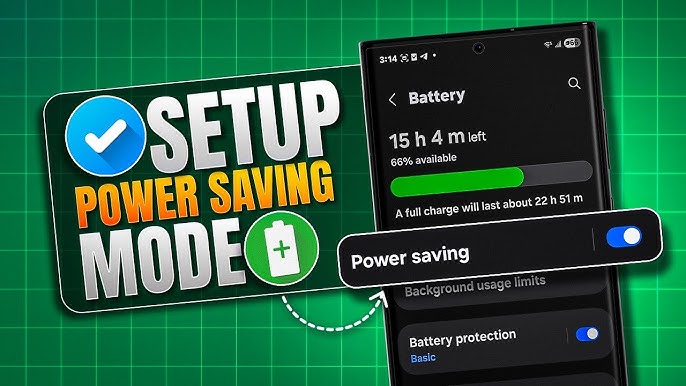
Most phones have a built-in battery saver mode that reduces performance, limits background activity, and lowers screen brightness automatically when your battery hits 20% or 10%. You can also turn this mode on manually at any time if you know you won't be near a charger for several hours. This mode can add 1-3 extra hours of battery life depending on your device.
Challenges to Be Aware Of
- Temporary adjustment to habits: Many of these changes require small adjustments to how you use your phone, which can feel inconvenient for the first week or two. You may miss some non-essential notifications at first, but you can adjust permissions individually to find a balance that works for your needs.
- App compatibility restrictions: Some older or specialized apps may not work properly if you restrict their background activity or auto-sync settings. Test each adjustment for a day or two to make sure you don't break functionality for apps you rely on for work or personal use.
- Hardware limitations for older devices: If your phone is more than 3 years old, its battery may already have significant degradation that software changes can't fully fix. In these cases, a battery replacement may be the most effective long-term solution, and the tips in this guide will still help extend the life of your new battery.
Conclusion
You now have the foundation to start boosting your phone's battery life and stopping unnecessary drain right away. All of these steps are simple to implement, and you can start seeing noticeable improvements in your battery life as soon as today.
Boosting your phone's battery life offers the chance to cut down on daily stress, save money on device costs, and get more use out of your phone every single day. By building these small habits, you're positioning yourself for a far more convenient and cost-effective device experience.
Don't wait for the perfect moment. Start by auditing your background app usage today. You'll be surprised how much extra battery life you can unlock with just a few small adjustments to your settings.
FAQ
How long does it take to see improvements in my battery life?
You will likely see noticeable changes within the first 24 hours of implementing these settings adjustments, as most background drain stops immediately. For full, consistent results, give your phone 2-3 full charge cycles to adapt to your new usage patterns. Start with the highest-impact steps first for the fastest results.
Do I need any special apps or tools to follow this guide?
No, all the settings and adjustments covered in this guide are built directly into both iOS and Android operating systems. You don't need to download any third-party battery saver apps, which often cause more drain than they fix. Stick to your phone's native settings for the most reliable results.
What's the best way to reduce battery drain while traveling?
When you're traveling, turn off mobile data if you're in an area with poor signal, as constant network searching uses a huge amount of power. Use offline maps for navigation instead of live tracking, and keep your phone in airplane mode when you don't need connectivity. These small changes can double your battery life on long travel days.
Can these battery-saving steps affect my phone's performance?
Most of these changes will have no noticeable impact on regular phone use for browsing, messaging, and social media. If you use power-intensive apps like mobile games or video editors, you can temporarily turn off battery saver mode while using those apps. Test different settings to find the right balance between battery life and performance for your needs.


RECOMMEND ARTICLES
Most Read

How To Learn A New Sport: A Practical Guide For All Skill Levels

Navigating Senior Housing Options For The 55+ Community

How To Get A Free House In Sims 4 Safely

Touch The Frame To See Your True Self

Is Taking The '10 Questions For 160+ IQ' Test Really Worth Your Time?